Using your phone as a Roku remote is faster, easier, and removes the need for a physical remote. This guide shows how to control your Roku using the free RoByte app.
RoByte: Remote for Roku
The easiest Roku remote available
Why Use a Roku Remote App?
Roku devices are simple, but the physical remote can be slow for typing, easy to lose, and limited in features.
RoByte turns your phone into a full Roku remote with added convenience.
Benefits:
- Your remote is always available in your pocket
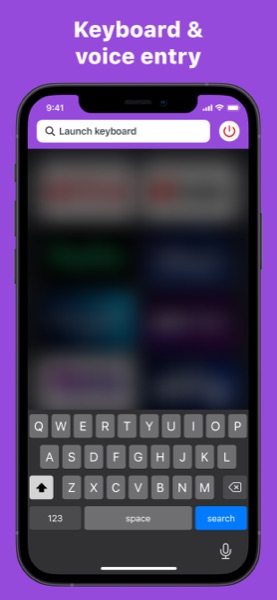
- Quickly type using your phone's keyboard and voice input
- Control your Roku from anywhere in your house
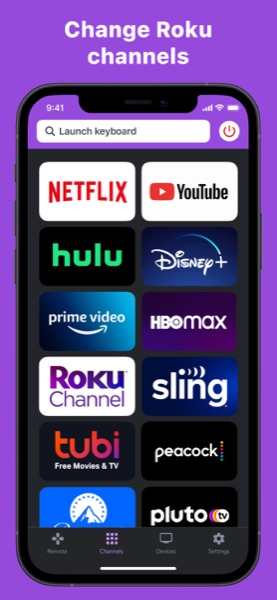
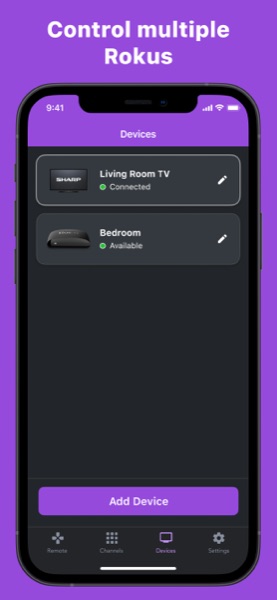
- Easily change channels and switch between multiple Roku devices
How to Connect RoByte to Roku
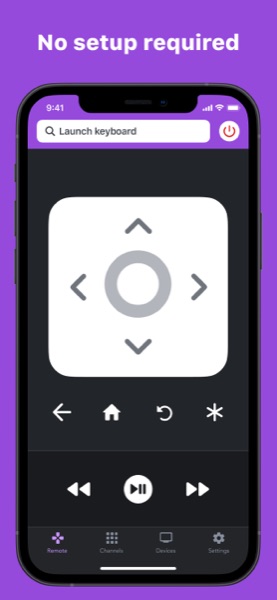
There is no setup required.
- Make sure your phone is on Wi-Fi
- Open the RoByte app
- Your phone will find your Roku automatically
What You Can Do with RoByte
RoByte gives you full remote control from your phone, plus a few things the physical remote can't do:
- Full remote control: home, back, play, pause, navigation, and volume
- Use your phone's keyboard for search and login screens
- Use voice input instead of typing when preferred
- Launch channels like Netflix and YouTube with one tap
- Switch between multiple Roku TVs and streaming devices
Get RoByte
Turn your phone into a Roku remote in seconds. RoByte is free on iPhone, iPad, and Android.
RoByte: Remote for Roku
The easiest Roku remote available